
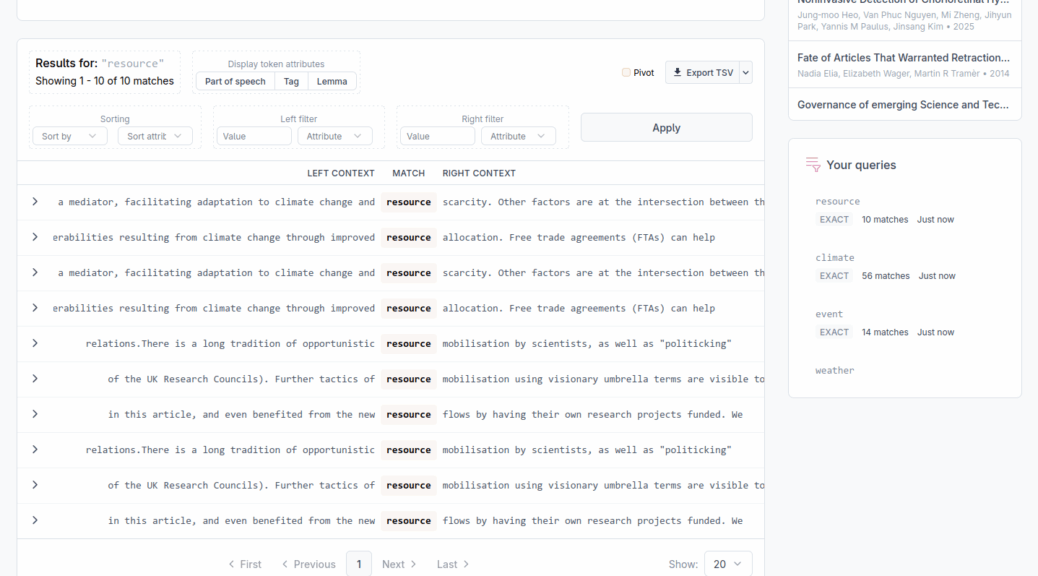
Concordancer is a method that allows fine-grained search and in-context analysis of textual patterns in your corpus.
What is a concordancer?
The term concordancer comes from corpus linguistics. Concordancing is a technique used by linguists to analyze language patterns and usage, and a concordancer is a computer tool that supports this work.
A concordancer allows searching the whole corpus to retrieve a specific word or phrase, then displays the results in a one-per-line format where the context before and after each result can be seen. This format is called Key Word in Context (KWIC). It allows discovering how a word or phrase is actually used across the corpus.
Your corpus as documents
For usage of the concordancer, your corpus is composed of several documents. The method parameters allow you to specify which fields of your corpus correspond to the text and which fields correspond to documents’ title, authors, venue, and other metadata.
Parameters
Text sources
Choose the fields you want to use as the document’s text. For scientific articles, this is usually the abstract or body, but you can also include the title, titles of references, and any other textual field. The contents of the fields you select, if you select several, will be joined together as paragraphs. Keep in mind that the concordancer allows search of words and phrases in context, so using fields that contain single words such as keywords may not be very helpful.
Document metadata
Choose the way to select document metadata. Leaving ‘default’ makes the method try to detect the fields that correspond to metadata fields by searching for field names matching with the metadata item. For corpora parsed with GROBID, the ‘default’ option selects all correct fields. For other corpora, you may want to use the ‘manual’ option to set the metadata fields manually. Any metadata field can be left blank.
Document identifier
Field to use as the identifier for documents. This field should contain unique values for each document, so that when using concordance results we can know the document the concordance line appears in.
Document title
Which field to display as the title of documents.
Document date
Which field to display as the date of documents.
Document authors
Which field contains the authors of documents.
Document venue
Which field contains the venue where documents appear e.g. journal, review.
DOI field
Which field contains the DOI of documents.
Add more fields to document metadata
Additional fields to include as document metadata. You may select several fields to include as metadata.
Searching in your corpus
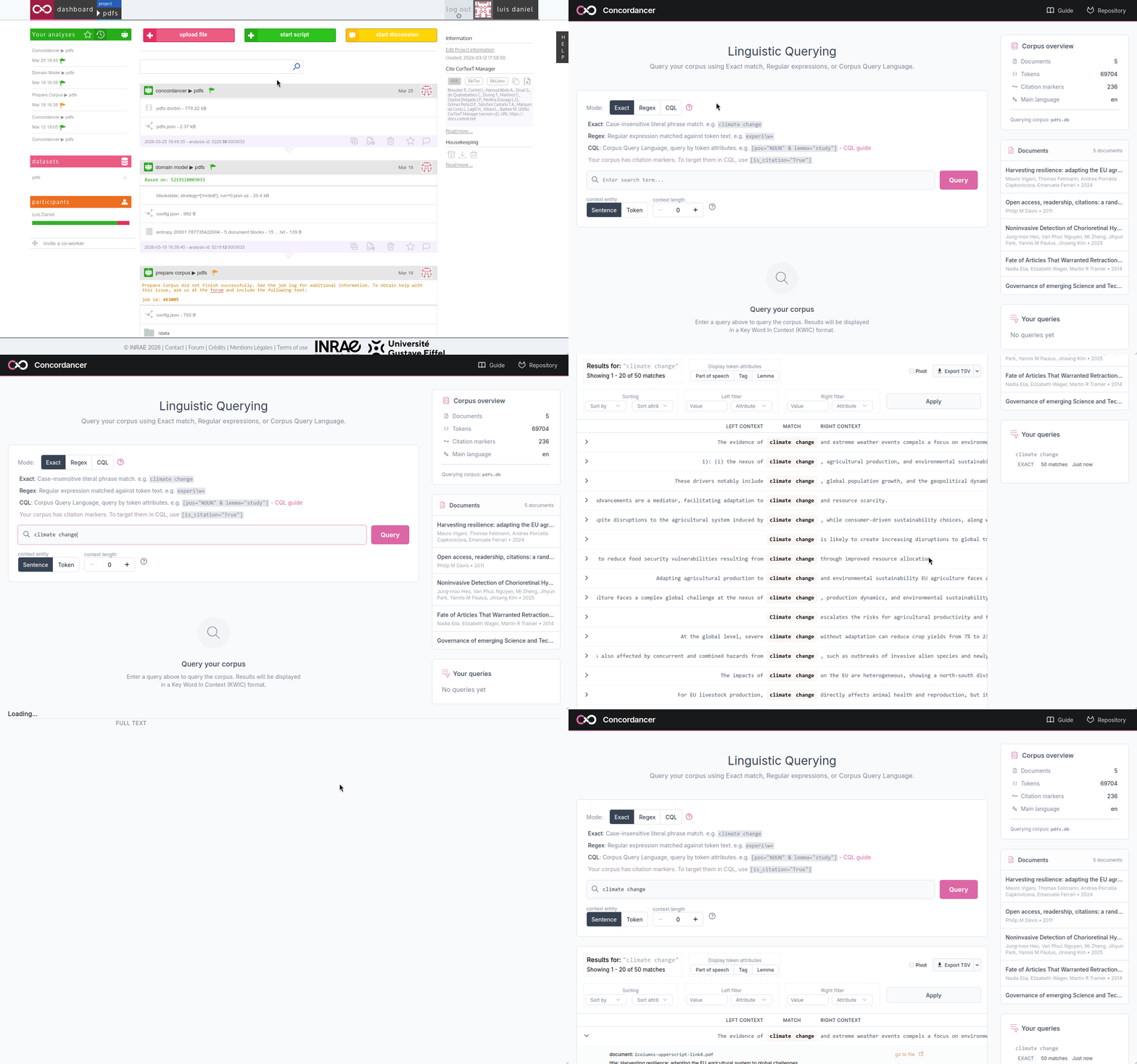
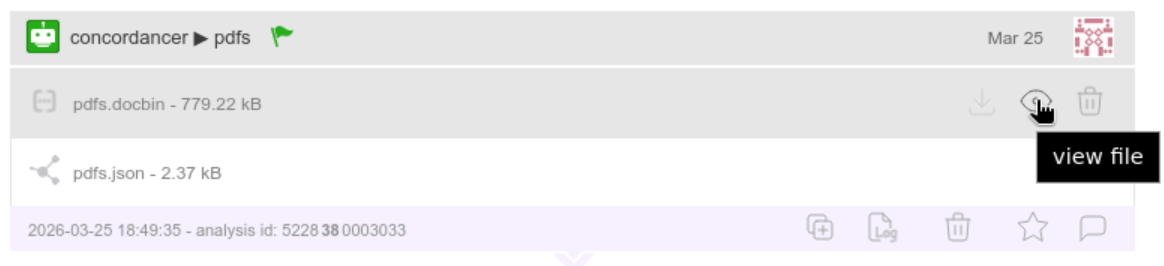
Once the method finishes running, a .docbin file will be produced. This is the file used to persist the processed documents. Clicking docbin file’s ‘eye’ button opens the concordancer web application in a new tab and starts loading your documents.
Concordancer web application
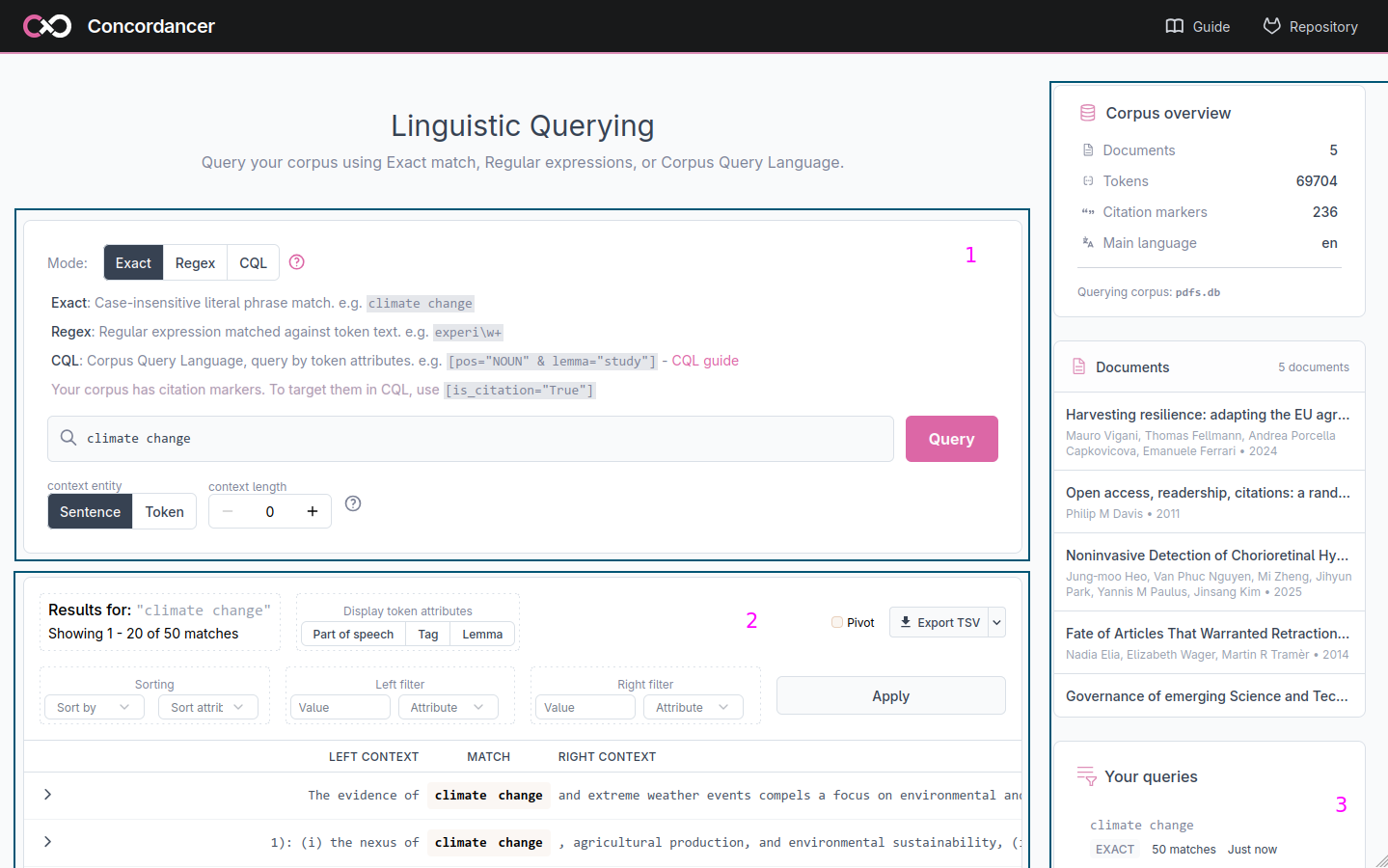
The web application is divided into several areas: a search bar (1) where you enter your query and configure the context, a results table (2) that displays the matches in KWIC format. A sidebar (3) on the right shows the corpus overview, the list of documents and a history of your previous queries so you can return to them at any time.
Query modes
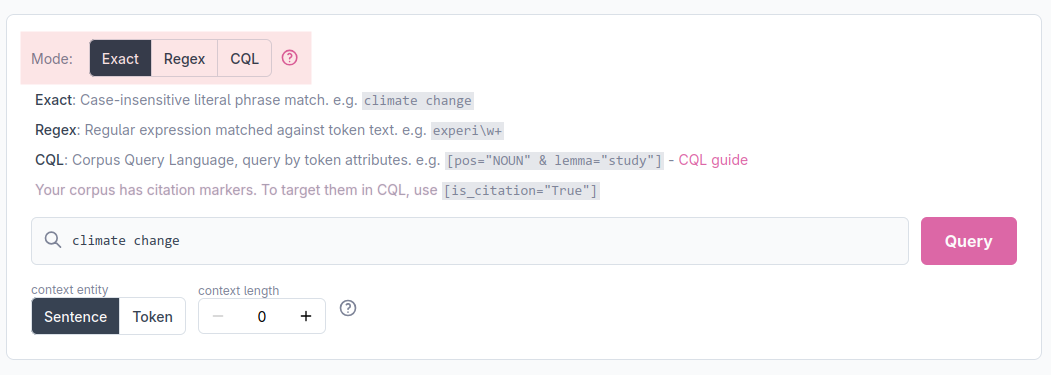
The search bar offers three query modes, selectable via the Mode toggle. A quick reminder of each mode’s syntax is displayed below the toggle.
Exact match
The default mode. The query is treated as a literal phrase and matched against the text exactly as written. This allows simple search of a word, a phrase or any multi-word expression.
Regular expressions
In this mode the query is interpreted as a regular expression pattern matched against the text. This allows you to search for spelling variants, for example, ‘experi\w+’ matches experiment, experimental, experience, and any other word starting with experi.
Corpus Query Language (CQL)
CQL lets you query not just by word content but by any combination of the linguistic attributes assigned to each token during processing: its part of speech, its grammatical tag, and its lemma. A CQL query consists of one or more token specifications enclosed in square brackets. For example:
[pos="NOUN"]any noun[lemma="study"]any form of the word study (studies, studied, studying, …)[pos="NOUN" & lemma="study"]study but only when used as a noun specifically[pos="ADJ"] [pos="NOUN"]an adjective immediately followed by a noun
If your corpus contains citation markers, you can target them with [is_citation="True"].
A full CQL guide with more examples is linked from the help panel in the search bar. Also here.
The KWIC display

Results are displayed in a KWIC table with three columns. The left column shows the context that precedes each match, the middle column shows the matched tokens, and the right column shows the context that follows. Aligning all matches at the center of the display makes it easy to scan the surrounding text and is the common format of KWIC displays.
At the bottom of the table, a counter shows how many matches were found in total and which page you are currently viewing. You may use the page navigation buttons and the per page selector to move through the results and select how many results to display on each page.
Configuring context size
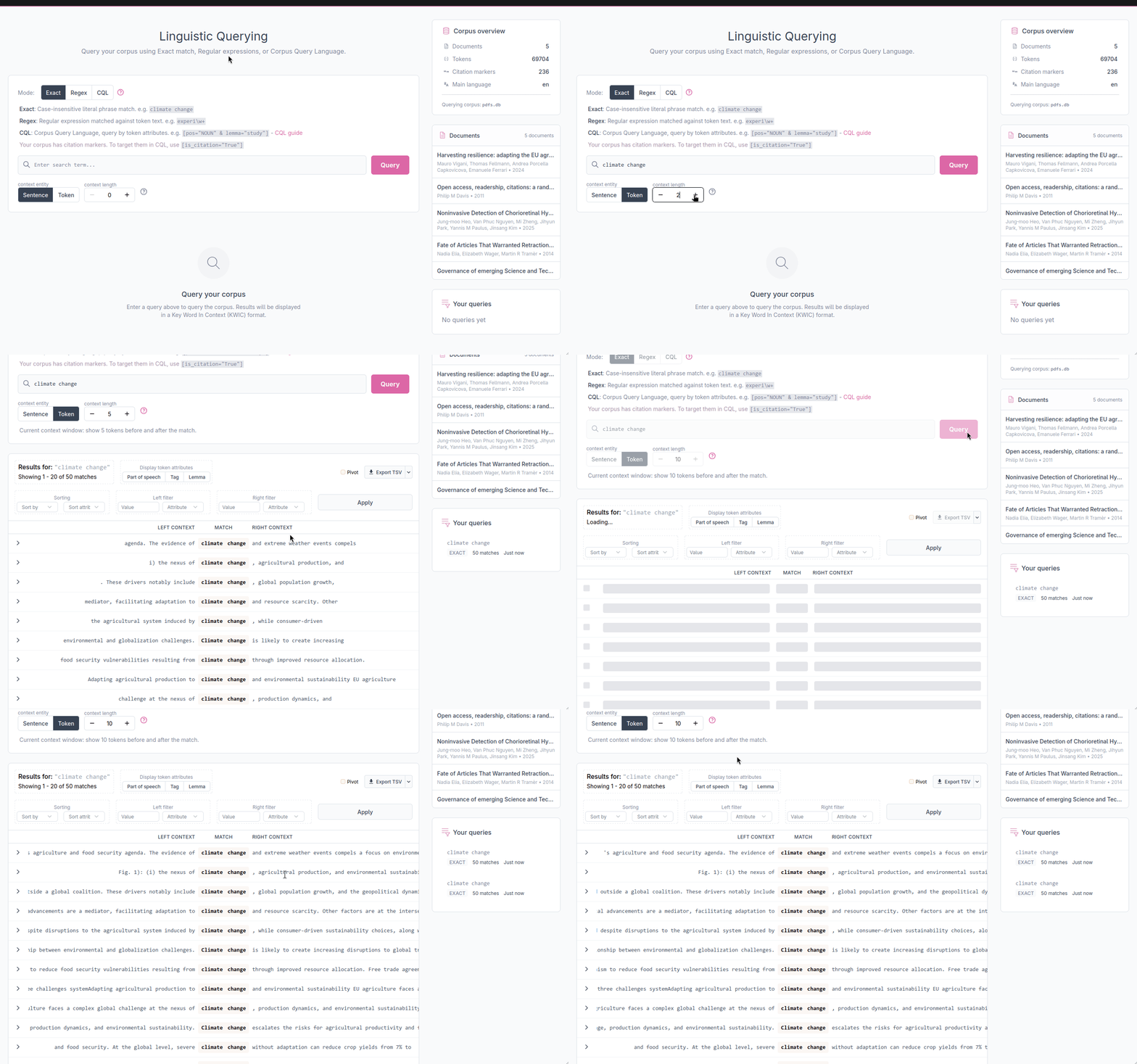
The Context controls below the search bar let you adjust how much surrounding text is shown. You can switch between two context units:
- Token: a fixed number of individual tokens before and after the match (max. 15 on each side)
- Sentence: one or more full sentences before and after the sentence that contains the match (max. 3 on each side)
Sentence context is useful when you want to read each result in its full grammatical setting rather than a fixed word window.
Inspecting token attributes
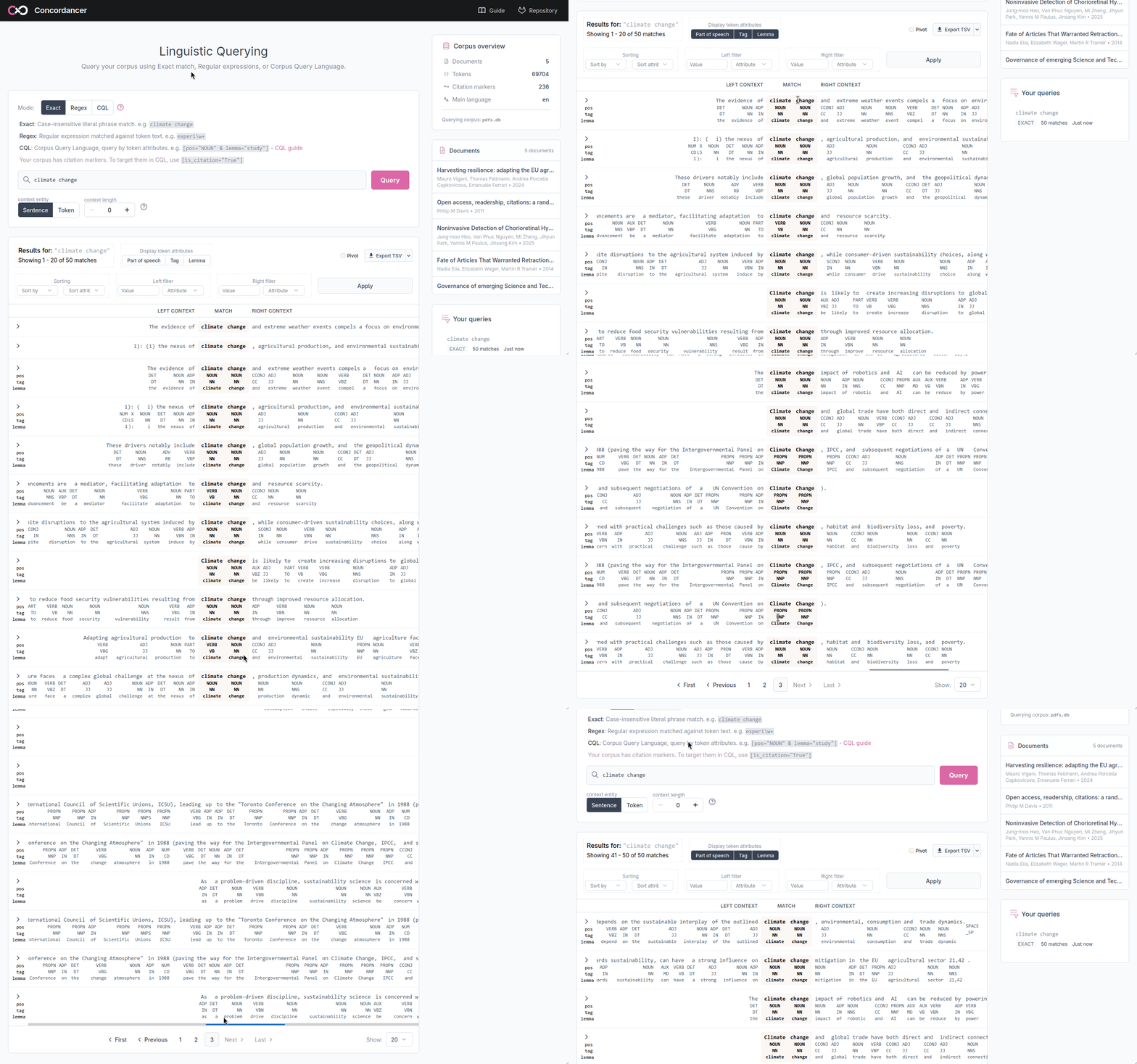
Each token in the display carries the linguistic annotations produced during processing. By default these are hidden to keep the table readable, but they can be revealed with the Display token attributes toggle group above the results. You can enable any combination of:
- pos: the broad part-of-speech category (NOUN, VERB, ADJ, …)
- tag: the detailed morphosyntactic tag
- lemma: the dictionary form of the word
When enabled, each attribute appears as a small label under its token, for every token in the left context, match, and right context columns.
Sorting and filtering results
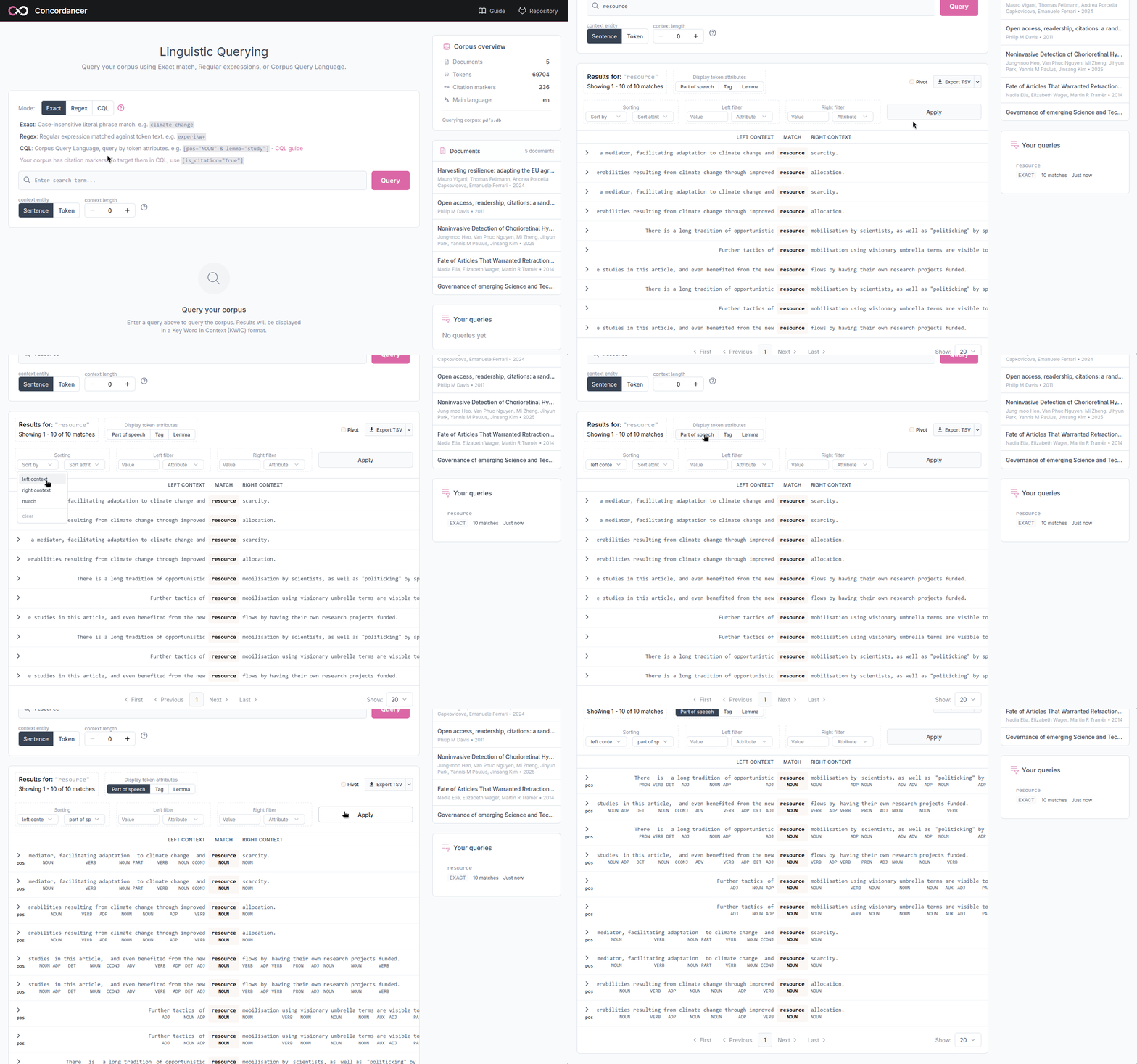
The Sort and filter panel lets you reorganise results by the linguistic properties of the tokens that surround each match. Sort and filter settings are applied together when you click Apply.
Sorting by surrounding tokens
Choose a position: the token just before the match, the match itself, or the token just after the match, and an attribute to sort on (text, pos, tag, or lemma). This arranges all results alphabetically by that position, which can help spotting patterns. For example, sorting by the token immediately to the right of the match groups results by the word that most frequently follows it.
Filtering by token attributes
You can restrict results to those where a specific position carries a specific value. Set the position (left or right context), the attribute (text, pos, tag, or lemma), and the value to match, then click Apply. Both a left-context filter and a right-context filter can be active at the same time. This filter applies only to the tokens directly adjacent to the match.
Navigating to source documents
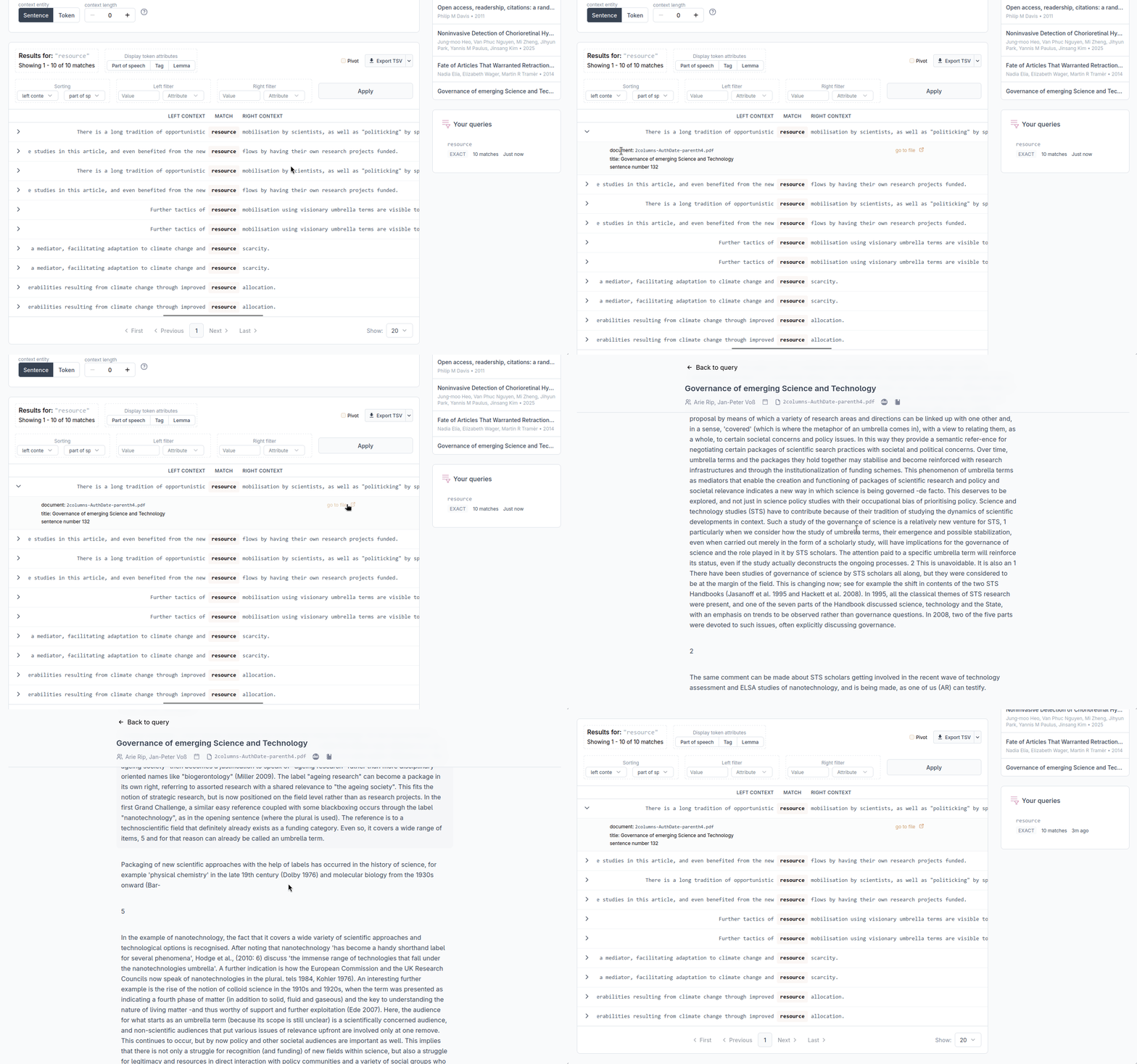
Each row in the KWIC table can be expanded by clicking the arrow on its left. The expanded view shows the document title, the document identifier, and the sentence number where the match appears. A go to document link opens the full text of the source document in a new view, where you can read the document. A back link returns you to the results.
Exporting results
The Export button (enabled once results are available) lets you download the full result set, not just the current page, in one of two formats:
- TSV: a tab-separated file that can be opened directly in a spreadsheet application
- XML-TEI + CSV: a zip archive containing an xml file following the Text Encoding Initiative standard, as well as the files necessary for further processing with TXM
Credits
The method uses the spaCy NLP library. We use its text processing pipeline to tokenize and sentencize the corpus and annotate each token and we use the spaCy matcher for running queries.
The design of the concordancer draws on a tradition of corpus linguistics tools:
- The IMS Open Corpus Workbench and its Corpus Query Processor are where CQL originates.
- TXM from the Textométrie project is a full-featured workbench built on the same foundation that informed how we think about corpus exploration.
- BlackLab, developed at the Dutch Language Institute, is a corpus search engine we took inspiration from, especially for our use of CQL.
Code
The code of this method and the web application is Free and Open Source Software. You can find the web application here and the method here.